
Preserve Template Formatting with Comments
To solve this, the template generation engine allows you to “annotate” syntax using document comments. Instead of typing a long formula directly into a cell, you can link a comment to a single character or short piece of text. The engine scans for these comments, extracts the formula, and replaces the linked text with the generated result.
The Problem: Inline Syntax Distortion
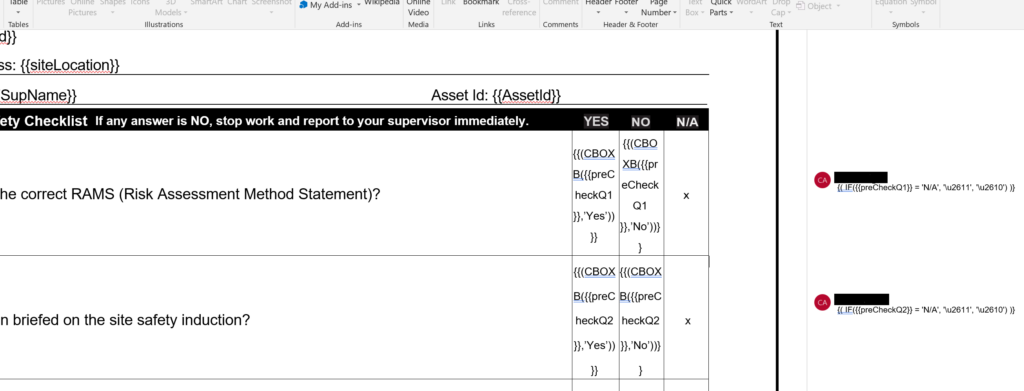
Using standard inline syntax can break your template’s visual structure. For example, a long checkbox formula in a narrow table column will force the row to expand awkwardly.
Example of Inline Distortion:
- Text in Template:
field_name equals '66'? - Inline Formula:
{{IF({{field_name}} = '66', '\u2611', '\u2612')}} - Result: The table cell stretches to accommodate the long string of code.
The Solution: Comment-Based Syntax
By moving the formula into a comment, you maintain a “What You See Is What You Get” (WYSIWYG) design experience.
Implementation Steps:
- Type a placeholder character (like an “x” or a simple checkbox symbol) in your template.
- Highlight that character and Insert a Comment.
- Paste your formula syntax inside the comment box.
Clean Template Examples:
| Goal | Text Linked to Comment | Formula inside the Comment |
| Logic-based Checkbox |  | {( IF({{preCheckQ2}} = 'N/A', '\u2611', '\u2610') )} |
| Simplified Checkbox | ☐ | {{CBOX({{IsInspected}}, 'Yes')}} |
Important Considerations
- Layout Preservation: Comments “hover” over the content, so they do not affect the alignment or spacing of your Word or Excel tables.
- Font Replacement: When using functions like
CBOX(), the engine automatically ensures the output uses a compatible font (such as Segoe UI Symbol) to render symbols correctly. - One Comment Limit: Each piece of text can only be linked to one comment. Multiple comments on the same text are not supported.
When the template is generated, the comment and the placeholder text are removed and replaced by the actual data or symbol.