
Connecting to QuickBooks
 | QuickBooks is only available under the Premium FormsFly subscription plan. |
These processes can be further streamlined with apps from our platform that can create or update data in QuickBooks, such as contacts, invoices, tracking categories, and timesheets.
To connect FormsFly to QuickBooks, you first need to set up a Connection. This allows FormsFly to send and receive information from your QuickBooks account.
Once the connection is established, you can use Form Connectors to send data to QuickBooks or Data Source Connectors to pull information from it.
Adding
The Data Hub area of the platform is where you can add connections for connectors. Navigate the side menu to Connected Data > Connections.
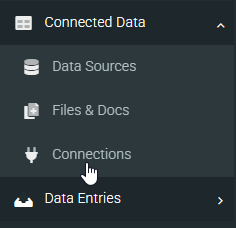
On the Connections page:
- Click the ADD CONNECTION button in the top-right-hand corner to bring up a list of connections.
- Click on the QuickBooks Online option.
Authenticate a Connection
Once you’ve added a QuickBooks Connection, hit the Authorise button and sign into your QuickBooks account to allow FormsFly to push or pull data from your account
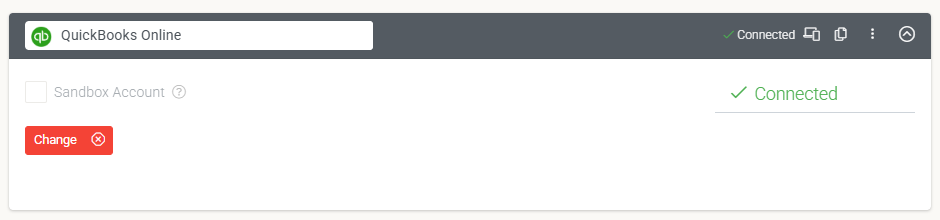
After logging in, click the Save button at the top right of the page. The connection will show “connected” status, confirming that FormsFly can now communicate with your QuickBooks account.
You can now add QuickBooks Form and Data Source Connectors to push and pull data from your QuickBooks account.
Sandbox Account
Allows for testing via a QuickBooks sandbox account.