Form Entries Feed
In this article
Viewing Records
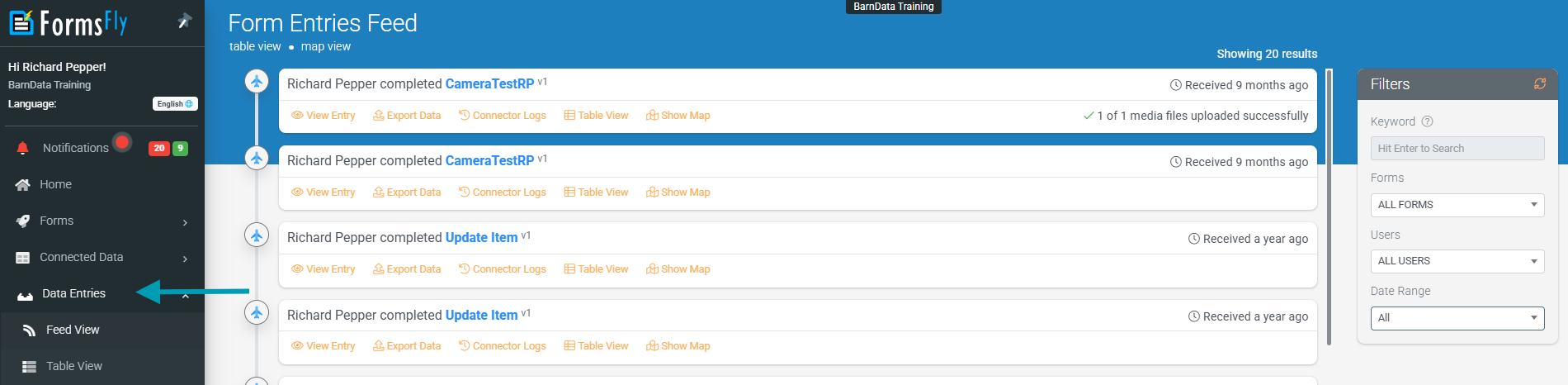
Form Entries shows all records from your account as a timeline. You can search or apply filters to the list, making finding a particular record easier.
Apply a Filter
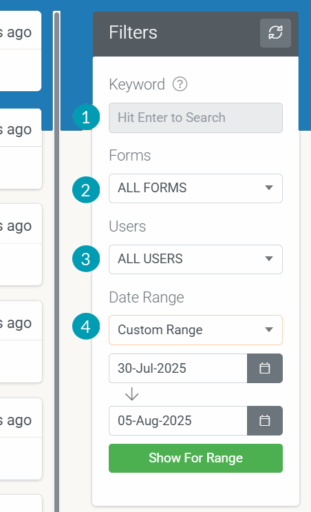
To filter the list, set the options on the Filter pane to the right of the window.
- Keyword: Type some text to filter the list.
- Forms: Select a form.
- Users: Select a user.
- Date Range: Select a Date Range from the drop-down, or set a Custom Range for specific dates
Form Entry Options

View Entry
To see details and perform other functions for a record, choose the View Entry link in the record’s card. A new window will open with the record details.
See more information about the View Entry window in the Editing Form Entries article.
Export Data
Data for one or more entries can be exported in several ways.
See more information about exporting data in the Manually Downloading Data article.
Connector Logs
Connectors log their activity when they run. Choose the Connector Logs link from the record’s card to view the logs. The Connector Logs pane will open and include several options:
Reschedule: Reschedule the connector to have it rerun

Show History: View the history for this entry

Table View
Form Entry data is displayed on the Table View page. Furthermore, you could select a specific form and form version, and apply filters if you needed.
Show Map
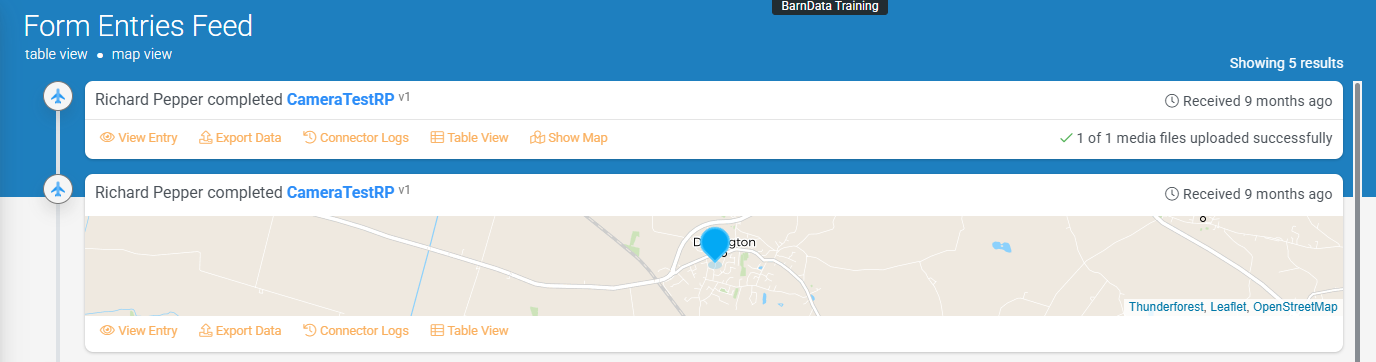
This option will display the location from which the form was submitted on a map.
Switch Views
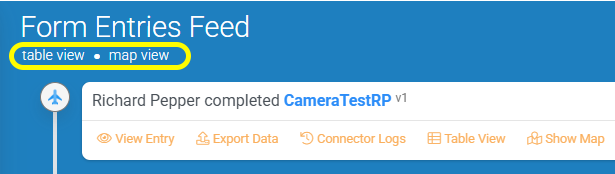
Use the links to the right of the Form Version drop-down, or in the record card to switch views:
- Table View: switch to Table View
- Map view: switch to Map View