---
title: "REST – Task Connector"
url: "https://help.formsfly.com/en/article/rest-task-connector"
language: "en"
last_updated: "2025-07-09T09:02:14.444Z"
---
# REST – Task Connector
REST Task connectors allow you to send data to third-party applications that support REST API on a Task’s event if the assigned user changes, the status updates, or the Task becomes overdue.
* * *
You define the REST connectors on [Task Templates](https://help.formsfly.com/en/article/task-templates).
## Adding REST Task Connectors
Go to the Tasks main menu item, then jump to the “templates” page via the navigation bar. You should see a list of your existing Task Templates displayed.
**Task Template Details page:**

**Task Template page:**

If you don’t have any Templates, add a new template by clicking on the **ADD NEW** button. This starts the task template wizard. You can read more on the steps to create a Task Template [here](https://help.formsfly.com/en/article/task-templates).
When creating a new template, the wizard will include a Connectors step. If you edit an existing Template, you should see an additional navigation link named “connectors” on the Template details page.
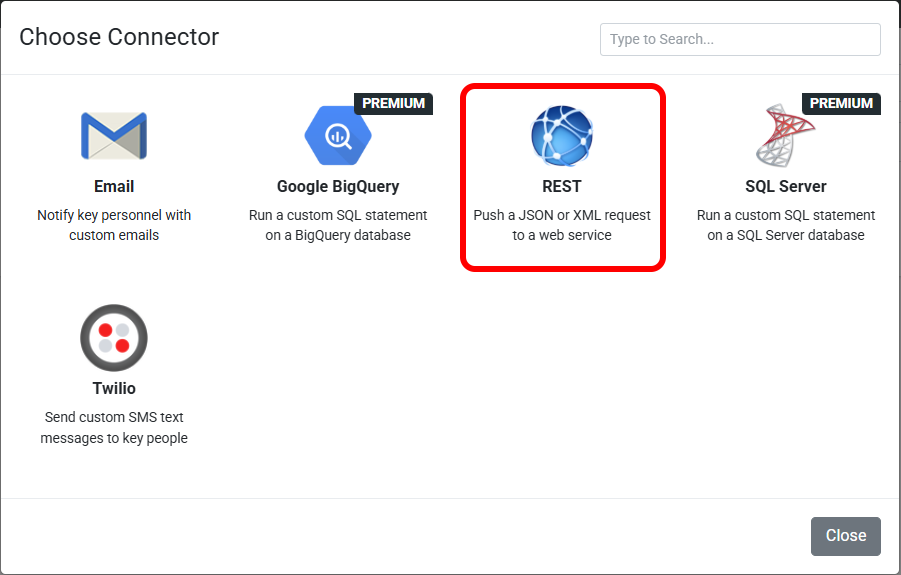
Once on the Connectors page, click the **ADD CONNECTOR** button. Select REST connector options.
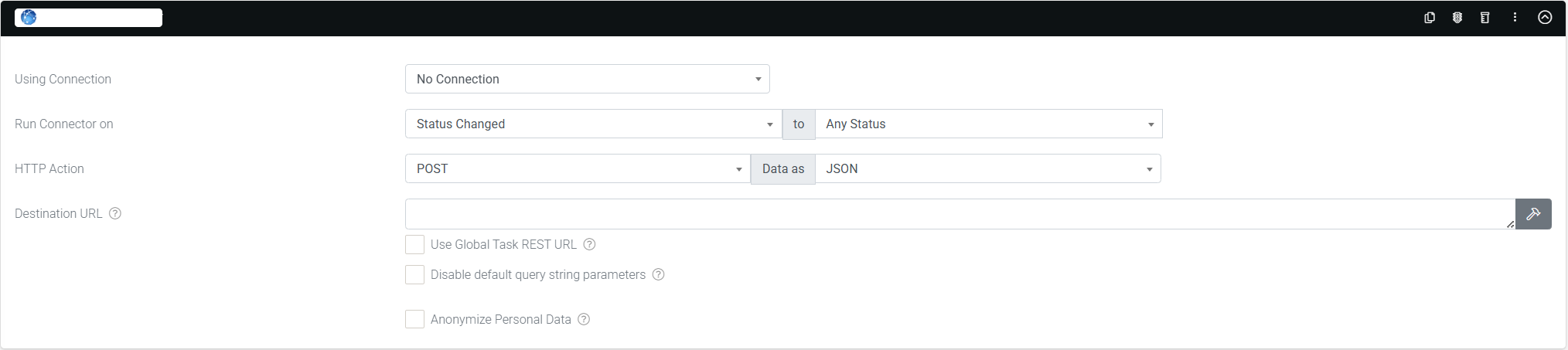
| **Using Connection** | This allows you to select a REST connection. If the third-party endpoints are using oAuth 2.0, this is required as the Authentication and Access Token are retrieved in the REST Connections. |
| --- | --- |
| **Run Connector on** | Set up the connector to run when a particular status has been changed, the owner has changed, or it is overdue. If the status has changed, it allows you to configure it at a specific status or all status. If Overdue was selected, you need to specify the number of days that connector will run after the overdue date. |
| **Destination URL** | You need to specify the destination URL to which our platform will POST data.
You can enter an address directly into the given field or “Use Global Forms REST URL” if set up on your organization setup page. |
| **HTTP Action** | Select the request action (POST, PUT, GET) and Data As (JSON, URL Encoded, XML). |
| **Data As** | Specify the format of the Rest API.
- JSON – JavaScript Object Notation format
- XML – eXtensible Markup Language format |
| **Use Global Task Rest URL** | Will direct all task connector requests to the REST endpoint defined in Organization Setup -> Global Task REST URL |
| **Disable default query string parameters (checkbox)** | By default, specific query string parameters are appended to the URL, which can be used to determine the context of the origin of a request. Un-tick this checkbox if you do not require this information to be sent.
Please note that if you are connecting with Platform Sync, this checkbox should remain un-ticked. |
| **Anonymize Personal Data** | When enabled, all fields marked as Personal Data will be converted into a nonhuman-readable format to aid with privacy. |
**You can add multiple(email, REST, BigQuery, SQL Server or Twillio) task connectors into your task.**