---
title: "Dropbox – Form Connector"
url: "https://help.formsfly.com/en/article/dropbox-form-connector"
language: "en"
last_updated: "2026-08-12T14:43:22.974Z"
---
# Dropbox – Form Connector
Before you can add a Dropbox Form Connector, you’ll need to authenticate a [Dropbox connection](https://help.formsfly.com/en/article/adding-a-dropbox-connection).
Then [add a Connector](https://help.formsfly.com/en/article/adding-form-connectors) to the desired Form’s Connector page to configure.
* * *
## Configuring a Dropbox Form Connector
### Basic Settings
| Property | Description |
| --- | --- |
| **Send Form Answers** | Check to enable Form Answers to be sent in the format selected against File Format. |
| **File Format** | Select the File Format for the form-captured data to be sent in.
**NOTE:** If the ‘Anonymize Personal Data’ option is enabled, form answers marked as Personal Data will be excluded. |
| **Send Media Files** | If this is checked, you can select the individual media files to send/attach.
These could be signature images, photos, or other attachments.
**NOTE:** If the ‘Anonymize Personal Data’ option is enabled, media files marked as Personal Data will be excluded. |
| **File Name** | Optionally enter a custom file name or create a dynamic attachment name using fields from your Form.
The file extension (.pdf, .xlsx, .docx, etc) will be added automatically.
The generated file name, including the extension, may not exceed 120 characters. |
| **Disable Random Code** | Disable the default system behaviour of appending a 6-character random code to the generated file name.
e.g., instead of ‘FileName-abc123.pdf’, the file would be generated as ‘FileName.pdf’ |
| **Folder Path** | Optionally enter a folder path for the exported file to be placed in.
Path should be entered in the following format: ‘FolderName/AnotherFolder/FileGoesInThisOne’ |
| **Dropbox Team Folder** | If this file is to be uploaded into a Dropbox Team Folder, ensure this is selected. |
| **Anonymize Personal Data** | If enabled, data from fields marked as Personal Data will be converted to a non-human-readable format to aid privacy. |
| **High Resolution Images**
*Available for File Format: Excel/Word/PDF* | By default, images are output at a resolution of 96ppi (pixels per inch).
This makes the generated size of output files smaller and thus faster to transfer.
Selecting this option increases image resolution to 150ppi, boosting picture quality at the cost of a much larger output file size. |
| **Launch Images by Click/Tap**
*Available for File Format: Excel/Word/PDF* | By default, images embedded in file outputs are not clickable.
Select this option to view images separately in a web browser by clicking or tapping the file.
**NOTE:** The image link seen in the web browser will reflect this portal’s web domain – if this is not desired, do not select this option. |
| **Entry Format**
*Available for File Format: JSON/XML* | If a custom body is not specified, the system will send form entry data in one of our default API formats.
Raw format provides basic answer output, whereas Rich includes data type information. Consult our API documentation to decide which format suits your requirements. |
## Add a Data Template
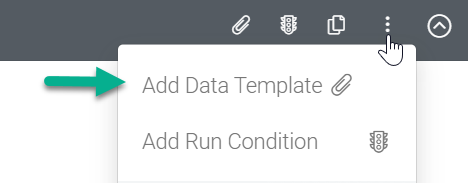
Customize the output by uploading a data template.
| Property | Options |
| --- | --- |
| **Format Data With Template** | For **PDF** output, you can use a Microsoft Word(.DOCX) or Excel(.XLSX) file as the template.
For **Word or Excel** outputs, provide a template of the matching file type.
For **JSON** data output, you can only have a text(.TXT) or Json(.JSON) template.
For **XML** output, only text(.TXT) or Xml(.XML) template files can be used.
For all other output types, your template must be a plain text (.TXT), Json (.JSON) or XML (.XML) file. |
## Add a Run Condition
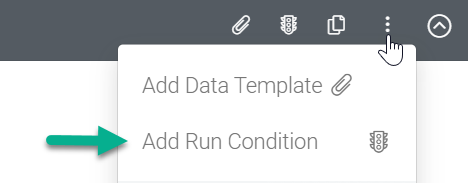
Add a condition that returns a true/false result, when true, the Connector will run.
| Property | Description |
| --- | --- |
| **Only Perform This Action When** | Add a formula that calculates whether or not this Connector should be run when a form entry is submitted.
Use the hammer icon to launch the Formula Builder and build a formula that returns a true/false result. |
| **Wait No Longer Than**
(minutes) | Specify a maximum time to wait before running this Connector.
Generally, the answer values on Form entries are uploaded within a few seconds.
If photos or other media are captured, these files can take time to upload.
By default, the system waits until all media files are uploaded from the app before running the Connector.
Use this option to force trigger connector outputs (likely missing some photos) due to business-critical time frames. |
Learn more about [Creating a Formula](https://help.formsfly.com/en/article/creating-a-formula)