---
title: "Connecting to Amazon S3"
url: "https://help.formsfly.com/en/article/connecting-to-amazon-s3"
language: "en"
last_updated: "2026-08-18T13:30:25.058Z"
---
# Connecting to Amazon S3
In order to push/pull data from your Amazon S3 storage buckets or S3 API-compliant third-party services, you must first configure an S3 Connection.
* * *
## Adding a Connection
When logged into your FormsFly web portal, navigate to *Connected Data > Connections > Add Connection – Amazon Web Services*. Learn more on how to [add Connections](https://help.formsfly.com/en/article/adding-connections).
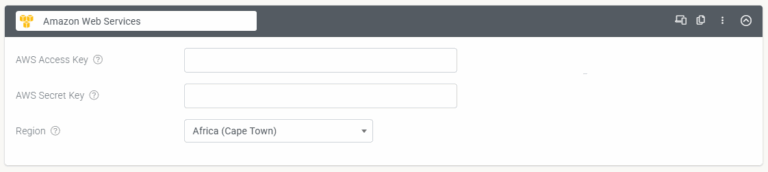
Once added, you’ll be presented with the Connection’s properties. You’ll need to specify the credentials of an AWS user account with access to your target S3 buckets.
| **Property** | **Description** | **Obtained From** |
| --- | --- | --- |
| AWS Access Key | This is like a username. It is an alphanumeric text string that uniquely identifies the user who owns the account. No two accounts can have the same AWS Access Key.
[Finding your access key](https://docs.aws.amazon.com/IAM/latest/UserGuide/security-creds.html#access-keys-and-secret-access-keys) | Via AWS account |
| AWS Secret Key | This key acts as a password. It’s called a secret because it is assumed to be known only by the owner.
[Finding your access key](https://docs.aws.amazon.com/IAM/latest/UserGuide/security-creds.html#access-keys-and-secret-access-keys) | Via AWS account |
| Region | Amazon S3 creates buckets in a region you specify. To optimize latency, minimize costs, or address regulatory requirements, you can choose any AWS region geographically close to you.
For example, if you reside in Europe, you might find it advantageous to create buckets in the EU (Ireland) region.
If a Custom S3 Endpoint is needed, select the option from the drop-down. | |
| Custom S3 Endpoint | Specify an S3 endpoint to use directly. Useful for S3 API-compliant third-party services.
This property becomes available when Region is set to Custom S3 Endpoint. | Via Third-Party Service |
Finally, after entering your Access and Secret Key, hit **Save** and then **Authorise**.
Your connection will be verified automatically – with **Connected** indicating a successful connection.
## Additional Info
If you are unsure of how to generate/download these access credentials for AWS, follow these steps:
| 1. | Sign in to the AWS Management Console and open the IAM console at: |
| --- | --- |
| | [https://console.aws.amazon.com/iam/](https://console.aws.amazon.com/iam/) |
| 2. | Create a new user with permissions limited to the services and actions you want the Connectors to access. |
| | For more information about creating a new IAM user, see [Creating IAM Users (Console)](https://docs.aws.amazon.com/IAM/latest/UserGuide/id_users_create.html#id_users_create_console), and follow the instructions to step 8. |
| 3. | Choose **Download.csv** to save a local copy of your AWS credentials. |
| | You can then open this file to view the Access Key and Secret Key required by the AWS Connection. |
## Permissions
The AWS S3 Connection and Connectors require the following permissions set:
- s3:ListBucket
- s3:PutObject
- s3:GetObject
## Form Connector Considerations
Currently, the S3 Form Connector creates files in the target S3 bucket with the access permission of **Public Read/Write**, which means the file is accessible to anyone with the file’s URL.
This generally means that your S3 bucket must have a similar public access permission to allow these files to be created.