---
title: "Adding a New User"
url: "https://help.formsfly.com/en/article/adding-a-new-user"
language: "en"
last_updated: "2026-08-12T14:38:38.339Z"
---
# Adding a New User
When logged into the web platform, navigate the side menu My Account > Users & Groups.
* * *
On the Users & Groups page, you’ll be presented with a list of **Active** and **Invited** users, with the ability to toggle **Inactive** users that have been temporarily deactivated.
This list can be **filtered** by user **status**, **type** or **keyword**.
Also, users can be organized into **Groups**. In turn, Groups can be assigned access to platform content like folders containing screens, docs and data sources, and task dispatching to a Group of users instead of individually.
## In this article
- [Adding a New User](https://help.formsfly.com/en/article/adding-a-new-user#adding-a-new-user)
- [Basic Details](https://help.formsfly.com/en/article/adding-a-new-user#basic-details)
- [Regional Settings & Other Info](https://help.formsfly.com/en/article/adding-a-new-user#regional-settings-&-other-info)
- [Assigned Folders](https://help.formsfly.com/en/article/adding-a-new-user#assigned-folders)
- [Group Membership](https://help.formsfly.com/en/article/adding-a-new-user#group-membership)
- [Import Users](https://help.formsfly.com/en/article/adding-a-new-user#import-users)
* * *
## Adding a New User
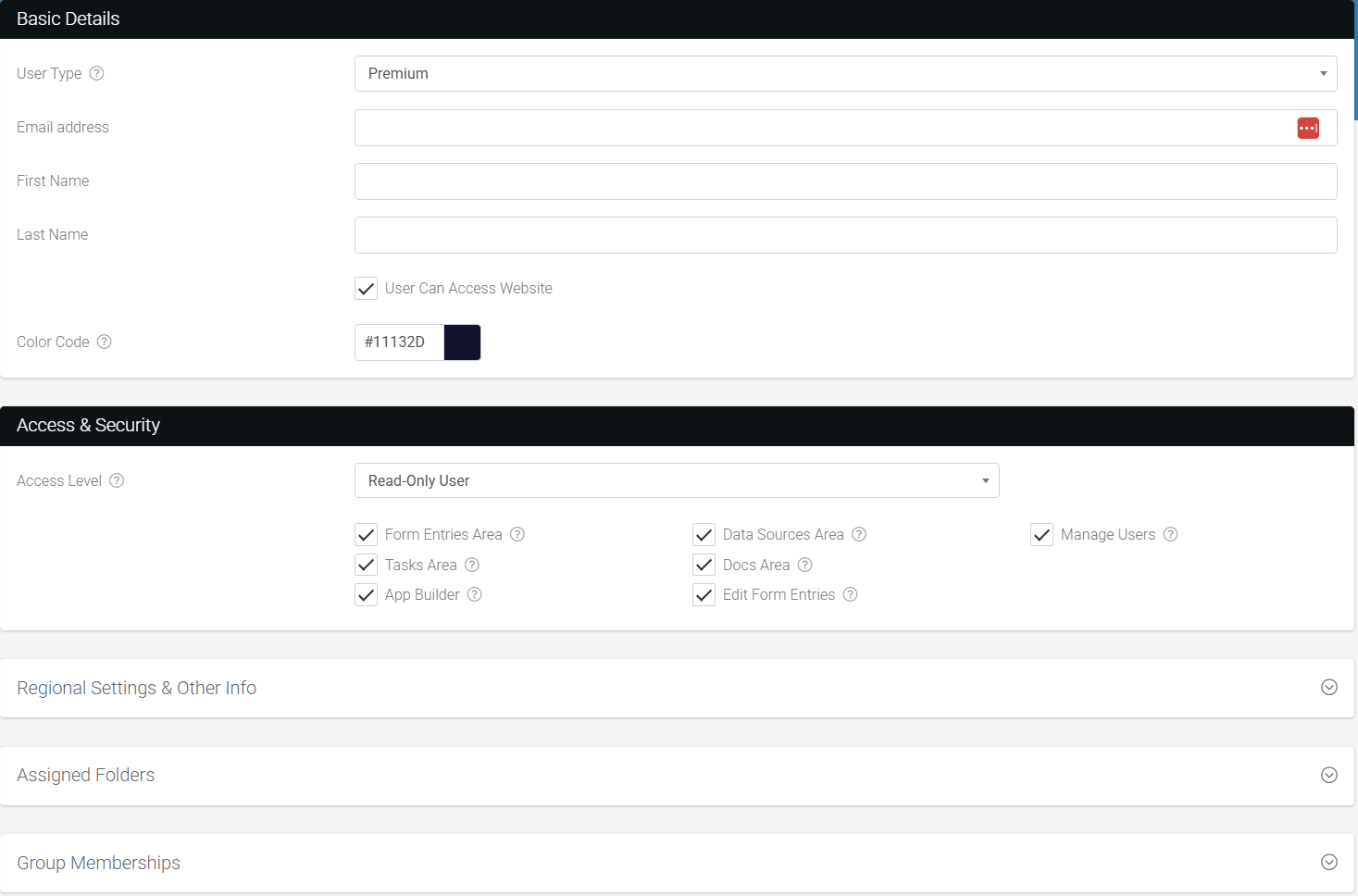
On the Users&Groups page is the **Add New** button, top-right. Clicking this will take you to the **Create User page** where you’ll be able to fill in the required details and a few optional settings to successfully create a new user.
| ***Note:*** If you’re unsure of a field or option, be sure to click on the hint icons (?) for additional information. |
| --- |
### Basic Details
Simply, once you’ve…
- Selected a **User Type**
- Standard: Best for light to medium usage.
(1,500 Form entries per month. No access to Premium features/fields, Task&Dispatch or Files&Docs.)
- Premium: Unlocks all platform features/fields with unlimited monthly Form entries.
- Enter in a valid **Email Address**
- and User **Name**
- or allowed **Website Access**, and not only access to the app’s digital solutions created on the website.
(Unchecked means the user can only access the app.)
You’re pretty much good to go and click **Create User**, top-right.
Upon creation, an **invite email** will be sent to the user’s email address providing temporary **login details** and app/website **access information**.
### Access & Security
If the **User Can Access Website**, set the user’s website role and access to platform areas.
| **Website Role** | **Description** |
| --- | --- |
| Enterprise Admin | Top-level account administrator.
Access to platform setup, billing and environment areas.
Can manage environments (if using Enterprise Toolkit), and can view passwords on the Connections page. |
| Administrator | Organization administrator.
Can add, edit & delete content in an organization account.
Access to organization setup areas such as users and groups.
No access to platform setup, billing or environment areas. |
| Read/Write User | User with editing capabilities.
Can add/edit/delete content in the platform.
Can view, import & export data in relevant areas.
No access to organization or platform setup areas. |
| Read-Only User | Limited user with read-only access.
View-only access to content on the platform.
Limited ability to export data from the platform.
No access to organization or platform setup areas. |
| Vendor Admin | Vendor-level super administrator.
Access to all Vendor features (requires Vendor subscription).
Can create new client accounts and can switch context into client accounts at will. |
### Regional Settings & Other Info
By default, but editable, the user’s **country** and **time zone** will be set to your account’s organizational settings.
Optional, an **External ID** and additional user **Metadata** can be added.
| External ID Lets you enter an identifier for the person from your other systems – e.g. your payroll or human resources system. Can be included when exporting data that the user has been involved in, such as Form entries.
Metadata Additional information about this user by specifying key/value pairs. These values can be accessed across the platform by using the USERMETA(‘key’) formula function. |
| --- |
### Assigned Folders
Assign folder permissions to the user from a list of available [Folders](https://help.formsfly.com/en/article/folders-overview).
Every folder assigned to a user allows the screens, docs and data sources inside that folder to
be downloaded and viewed when the user logs into the mobile app.
### Group Membership
If you are using user groups, then you can assign the user to one or more [Groups](https://help.formsfly.com/en/article/managing-users) as desired.
* * *
## Import Users
Our platform allows for bulk user imports via a **.xlsx/csv** file in a required format. A template of the required format can be downloaded after clicking **Import** on the Users&Groups page, on the top-right.
You could also **Export** your user’s list, **remove existing user rows** and add new users.