---
title: "Action Field Type"
url: "https://help.formsfly.com/en/article/action-field-type"
language: "en"
last_updated: "2025-06-27T15:56:17.774Z"
---
# Action Field Type
The Action field is an advanced dynamic field that allows customizing up to 5 buttons with user interactions.
* * *

In addition, simply set the field's value based on which button is pressed to drive other field conditional properties like visibility, read-only, required, etc.
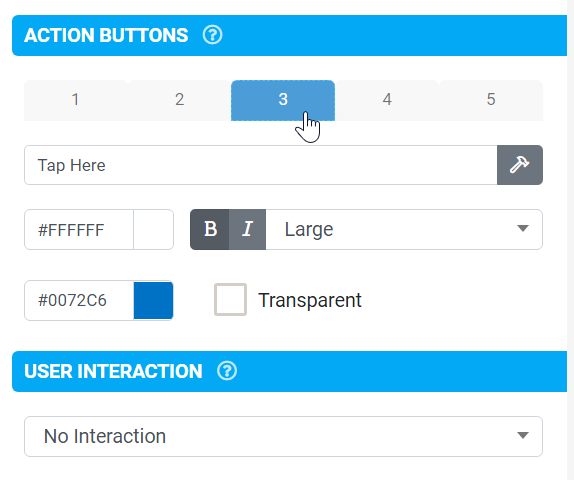
The user interactions available vary from simply uploading a form, navigating between form pages, opening links, launching other screens, and passing parameters, to mention a few.
## In this article
- [User Interactions](https://help.formsfly.com/en/article/action-field-type#user-interactions)
- [Layout & Styling](https://help.formsfly.com/en/article/action-field-type#layout-&-styling)
- [Advanced Options](https://help.formsfly.com/en/article/action-field-type#advanced-options)
* * *
## User Interactions
| **Interaction** | **Parameter** |
| --- | --- |
| Create Email To | Launches the default mail client. Specify the desired email address to create an email using static text or field values.
Pass values from fields in this Form using {{dataname}} syntax. |
| Create SMS To | Launches the default messaging app. Specify the desired phone number to create SMS using static text or field values.
Pass values from fields in this Form using {{dataname}} syntax. |
| Dial Phone Number | Launches the default phone dialer. Specify the desired phone number to dial using static text or field values.
Pass values from fields in this Form using {{dataname}} syntax. |
| Exit Without Saving | Pertains only to Form screens. Allows the user to exit the form without saving. |
| Exit & Save Changes | Pertains only to Form screens. Allows the user to save their changes and exit the form. |
| Force Sync | Forces the mobile app to synchronize with the server.
Force Sync vs. Refresh vs. Reload On Return |
| Geocode Address | Geocoding attempts to convert address text into decimal latitude/longitude coordinates.
The geocoded coordinate result (if any) is populated into this Interaction field.
The result is "lat lon", e.g., -13.3823724 153.9832837
Specify the address to geocode with static text or use Form fields with {{dataname}} syntax.
e.g. 5 My Road, My City, My Post Code, Country
or
{{number}}, {{road}}, {{city}}, {{countrycode}} |
| Jump To Form Location | General
- Start of Form
- End of Form
- Next Page
- Previous Page
Repeats/Tables
- Add New Repeat/Row
- Next Repeat/Row
- Previous Repeat/Row
Form Page
- Page1, 2, 3, 4, 5... |
| Open Doc | Target a published Files & Doc or load dynamically by specifying the unique ID or external ID of the Doc to open, using static text or field values.
Pass values from fields in this Form using {{dataname}} syntax. |
| Open Entry | Specify the Entry ID for the target Form Entry.
Reference columns from the App Entry Drafts or App Entry History data source by using {{this\[column\]}} syntax.
e.g. {{this\[2\]}} will pass the 3rd column's value for the current selected row.
Including Reload On Return options. |
| Open Screen | Target a published screen and send parameters to the target screen, passing values from fields in this Form using {{dataname}} syntax.
For Form targets, you can preset target fields with "dataname:value", pipe separated.
e.g. field1:{{city}}\|field4:hello
For Listing & Map targets, you can pass in a formula for filtering the target rows.
Use {{target\[column\]}} for target columns.
e.g. {{target\[3\]}} >= {{price}}
For Detail and Task Details targets, pass the identifier of the target data row or Task. For data rows, the identifier must match the first column's value.
e.g. {{mychoice}}
Including Reload On Return options.
**Note**
The ability to pass parameters and prepopulate fields in a launched screen is best suited to fields that aren't mapped to or driven by a data source.
If a field is mapped (Text/Numeric/Choices Field, etc.) or driven from a data source, it's best to pass a parameter to a hidden field and then reference the hidden field's {{dataname}} in the dynamic value of the field that needs to be pre-populated. |
| Open Task | Specify the Task ID for the target Task.
Reference columns from the App Tasks data source by using {{this\[column\]}} syntax.
e.g. {{this\[2\]}} will pass the 3rd column's value for the current selected row.
Including Reload On Return options. |
| Open URL in App | Loads the given web page URL directly within the app, provided the user has network connectivity when opening. |
| Open Link in Web Browser | Specify the web address to open using static text or field values.
Pass values from fields in this Form using {{dataname}} syntax.
e.g. [http://www.example.com?val1={{city}}](http://www.example.com/?val1={{city}})
**Note**
Ideally, links for images/docs need to be publicly accessible from the internet - i.e., they must not be hosted on a private network or require a session/login to access the content. |
| Refresh Screen | Refresh the current screen. Reloading a form's data sources and loading any new rows if they are present on the device.
Force Sync vs. Refresh vs. Reload On Return |
| Save Without Exiting | Pertains only to Form screens. Saves the form entry without exiting the form. |
| Show Address On Map | Specify the address text to open using static text or field values.
Pass values from fields in this Form using {{dataname}} syntax.
e.g. 5 My Road, City, Post Code, Country or {{myaddressfield}}, {{mycityfield}}, {{mycountrycode}} |
| Show Co-ordinates on Map | Specify the space-separated map latitude and longitude coordinates using static text or field values.
Pass values from fields in this Form using {{dataname}} syntax.
e.g. -12.345678 76.54321 or {{mylocationfield}} |
| Upload Form and Print | Uploads the form and prints the form entry. |
| Upload Form | Uploads the form to the server. |
Coupled with numerous user interactions, the Action field has a few unique properties that can be useful and scenario-dependent.
* * *
## Layout & Styling
| Flexible Columns | By default, buttons are shown in fixed positions on the screen.
This option will instead use flexible columns, which means the number of buttons will determine positions. |
| --- | --- |
* * *
## Advanced Options
| Always Trigger On Button Press | By default, buttons will only trigger dependent formulae once on the first time a user taps.
Use this option to specify that formulae must be triggered every time the button is pressed.
This is useful for scenarios such as counters/clickers where the field's value increments on each button press.
e.g., a Number field with a Dynamic Value of:
IF(NOTBLANK({{button}}), VAL('numfield')+1, 0) |
| --- | --- |
| Interaction Result | By default, this field is populated with the title of the button last pressed by the user.
This option lets you specify a static answer value that is always set into this field, no matter which button is pressed. |
| Display Result To User | Whether or not to display this field's result to the user as inline text below the buttons.
The value displayed would either be the title of the last button pressed or the Interaction Result (if specified). |